
Spotlight Layout Mode for Status Pages
Last updated: 2026-08-12
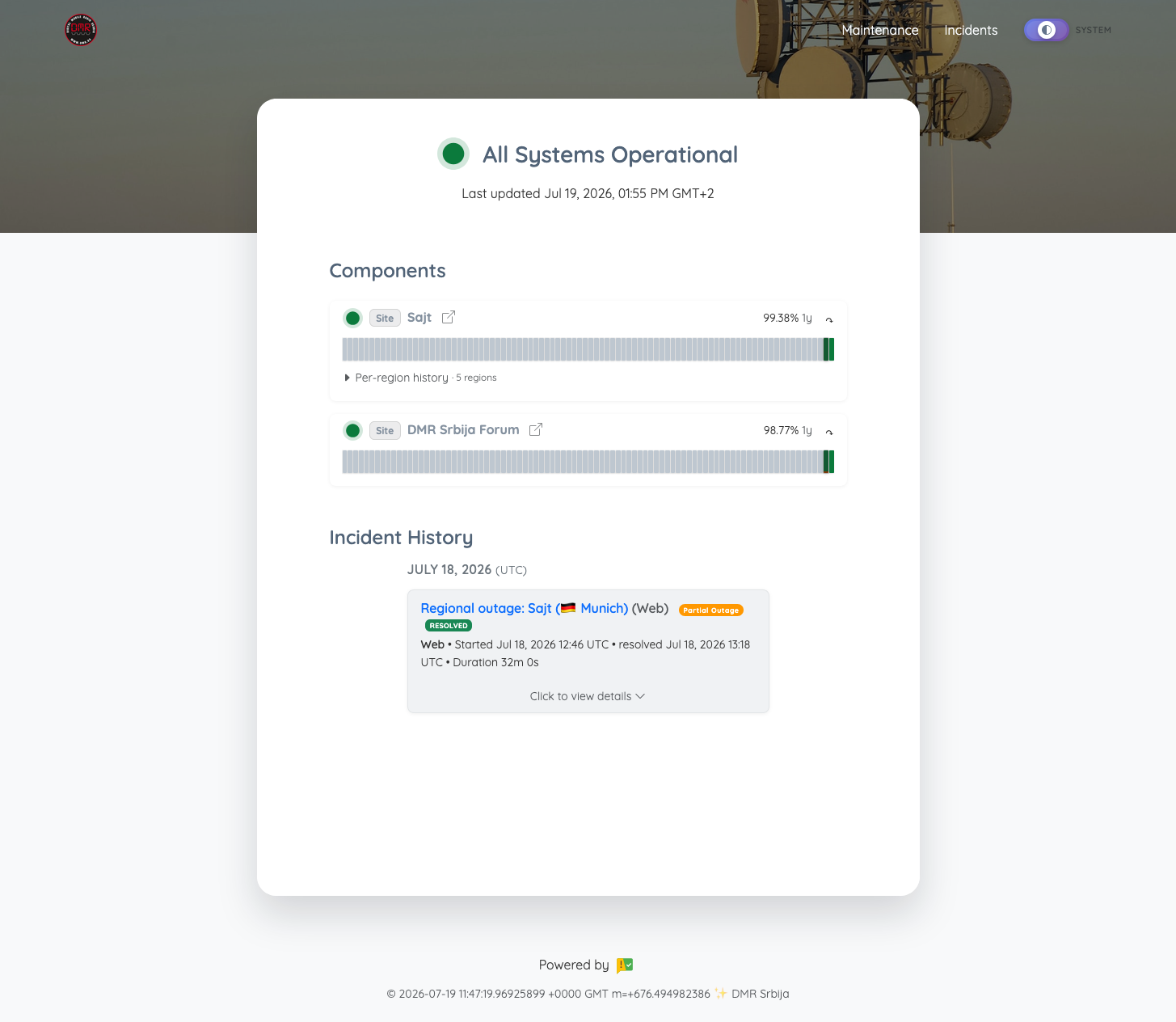
The Spotlight layout is a focused, centered alternative to the Default layout: a dark masthead band at the top of the page — behind your navbar and the overall status heading — fading into a narrower, centered content column below. Unlike the other layout modes, Spotlight also has its own masthead customization options: a background color, a header color, and an optional banner image.
When to Use the Spotlight Layout
The Spotlight layout is ideal for:
- A more visual, “hero banner” first impression than the flat Default layout
- Status pages that want a distinct, branded masthead — either a solid color pairing or your own photo/graphic behind the navbar
- Full uptime history without switching to a denser layout like Compact or Minimal
If you want the densest possible view with truncated history, use the Compact layout instead. If you just need status pills with no charts at all, use the Minimal layout.
How the Spotlight Layout Works
Dark Masthead Band
A dark band spans the top of the page, behind the navbar and the “All Systems Operational” heading, fading into your page’s normal background further down. The navbar itself is transparent by default, so it blends seamlessly into the band — or into your banner image, if you’ve set one.
No Legend or Overlap Note
Like Compact and Minimal, Spotlight hides the status legend and the “daily uptime ticks are shaded when they overlap scheduled maintenance” note, keeping the masthead area clean.
No Redundant Status Pill
The “All Systems Operational” pill next to the heading is hidden — the heading text and status dot already communicate the same thing, so Spotlight doesn’t repeat it.
Centered, Narrower Content Column
Your components list and Live Metrics tiles are centered in a narrower column, matching the width used by the Compact layout, rather than stretching full width.
Full Uptime History
Unlike Compact, Spotlight keeps the full 90-day history strip for every component — you get the focused, centered look without losing history detail.
Customizing the Spotlight Masthead
Spotlight is the only layout with its own dedicated masthead customization. Choose Spotlight from Settings → Visual → Theme & layout first. Its masthead controls then appear in Advanced.
Background and Header Colors
Two independent color pickers control the masthead:
| Color | Applies to |
|---|---|
| Background Color | The masthead gradient behind the whole band |
| Header Color | The navbar strip specifically |
Pick a color, or type a hex code directly into the text field next to each picker. Both fields default to the same dark navy shade, but they’re independent — set the header to a different color than the background for a subtle two-tone masthead, or leave one and customize only the other.
Click the reset icon (↺) next to either field to clear it back to the layout default. When reset, the header color becomes fully transparent rather than a hardcoded color, so it blends with whatever’s behind it — the default background, your custom background color, or a banner image.
Banner Image
Instead of (or in combination with) a solid background color, you can upload an image to fill the masthead band, similar to uploading a logo:
- Find the Banner Image section, right below the color pickers
- Click Upload and choose a file, or Enter URL to link an externally-hosted image
- Click Change to replace it, or the trash icon to remove it entirely
| Requirement | Details |
|---|---|
| Formats | PNG, JPG, WEBP |
| File size | Maximum 3MB |
The image is cropped to fill the masthead band (18rem tall on desktop, 13rem on mobile) rather than stretched, and a dark overlay is automatically applied on top of it so your status heading and “Last updated” timestamp stay readable regardless of the image’s own colors — no manual tuning needed. Remove the banner the same way you’d remove a logo, using the trash icon.
Image Position
If your uploaded image is proportionally taller than the masthead band once it’s scaled to fit the band’s width, the top and bottom get cropped off — which can cut off a face, a logo, or whatever matters most in the photo. When that’s the case, an Image Position control with a live mini-preview and a Top–Center–Bottom slider appears right below the Banner Image field, letting you choose which part of the image stays visible. It only shows up when there’s actually excess height to adjust; if your image already fits the band’s aspect ratio, there’s nothing to reposition and the control stays hidden. The same position applies at both the desktop and mobile band heights.
Make the Banner Background Transparent
When a banner image is set, enable Make the banner background transparent to let the upper, overlapping portion of the status surface pick up the banner image behind it. The status heading remains readable, and the rest of the page keeps its normal themed background so maintenance, components, and incident history remain easy to scan. Turn the toggle off for the fully opaque card treatment instead. It only has a visible effect when a banner image is set.
Plan Availability
Masthead colors require the same plan tier as Custom CSS (Starter and above). The banner image requires the same plan tier as your logo and other branding features.
Enabling the Spotlight Layout
- Go to Status Pages from the left menu
- Click on your status page
- Open Settings
- Go to the Visual tab
- In Theme & layout, click Choose design
- On the Layouts tab, select Spotlight, then click Use this design
- Open Advanced and optionally set a background color, header color, or banner image — and, if you upload a banner, optionally adjust Image Position (if it appears) and choose whether to make the banner background transparent
- Click Save Settings
Your page will immediately reflect the new layout and any masthead customization.