
Dependency Providers (3rd-Party Status Boxes)
Dependency Providers let you display the live status of third-party vendors (e.g. GitHub, Slack, Stripe, Cloudflare) directly on your status page.
This is useful when your product depends on external services and you want to:
- Be transparent about upstream issues
- Reduce support load (“it’s our payment provider”)
- Optionally reflect vendor incidents in your overall status
How It Works
Dependency Providers are configured per status page:
- StatusPage.me maintains a catalog of supported providers (logos + live status sources)
- You choose which providers to show on each status page
- You control ordering, and whether a provider can affect your overall status
Missing a provider you rely on? Email us at hey@statuspage.me with the service name and its public status page URL and we’ll do our best to include it.
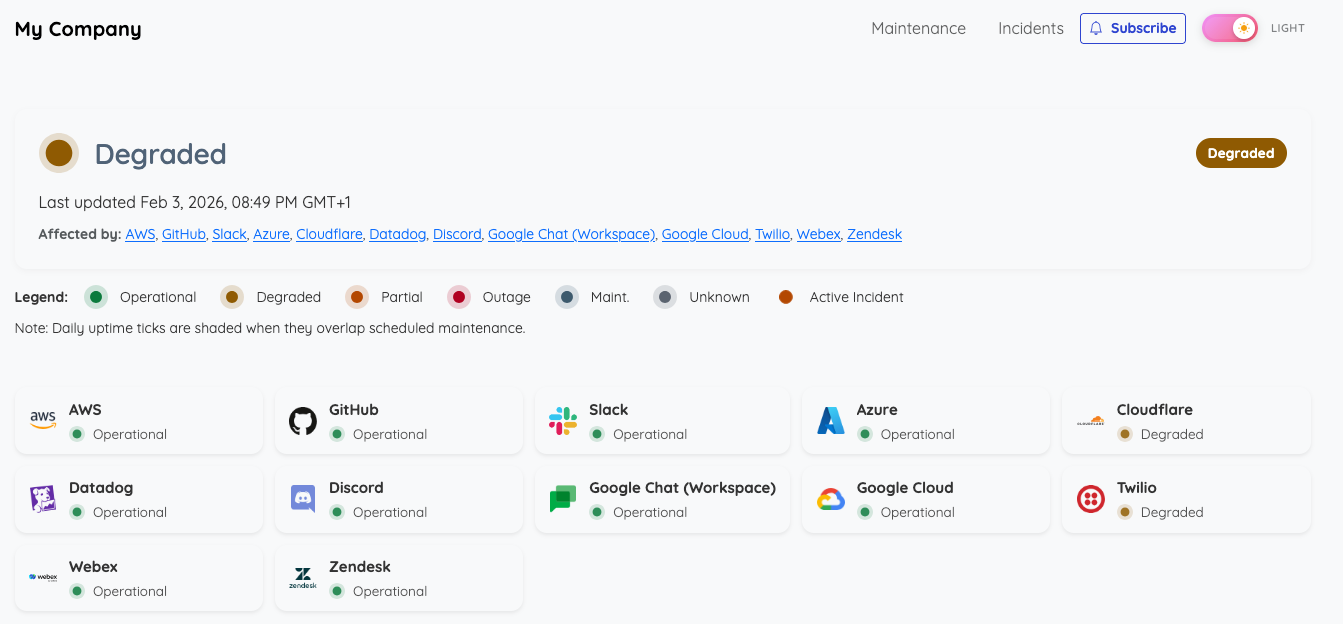
On the public status page, enabled providers appear as compact status boxes above your component groups.
Supported Providers
The following third-party services are available out of the box:
| Icon | Provider | Category | Status page |
|---|---|---|---|
 | AWS | — | View status |
 | Azure | — | View status |
 | Box | — | View status |
 | Brevo | — | View status |
 | Bunny.net | — | View status |
 | Claude.ai | — | View status |
 | Cloudflare | — | View status |
 | Contabo | — | View status |
 | Datadog | — | View status |
 | DigitalOcean | — | View status |
 | Discord | — | View status |
 | Dodo Payments | — | View status |
 | Fastly | — | View status |
 | GitHub | — | View status |
 | GitLab | — | View status |
 | Google Chat (Workspace) | — | View status |
 | Google Cloud | — | View status |
 | Help Scout | — | View status |
 | HubSpot | — | View status |
 | Intercom | — | View status |
 | Kamatera | — | View status |
 | LetsEncrypt | — | View status |
 | Linear | — | View status |
 | Mailgun | — | View status |
 | Matrix | — | View status |
 | OpenAI | — | View status |
 | OVH | — | View status |
 | Paddle | — | View status |
 | PayPal | — | View status |
 | Rackspace | — | View status |
 | Roblox | — | View status |
 | Slack | — | View status |
 | Stripe | — | View status |
 | Twilio | — | View status |
 | Vercel | — | View status |
 | Vultr | — | View status |
 | Webex | — | View status |
 | Wise | — | View status |
 | Zendesk | — | View status |
 | ZeroSSL | — | View status |
 | Zoom | — | View status |
We regularly add new providers based on customer feedback.
Plan Requirements
Dependency Providers may be plan-gated depending on your subscription.
If you don’t see the Dependencies tab in status page settings, check your plan in:
User Setup (Enable Providers on a Status Page)
Status page owners configure Dependency Providers in:
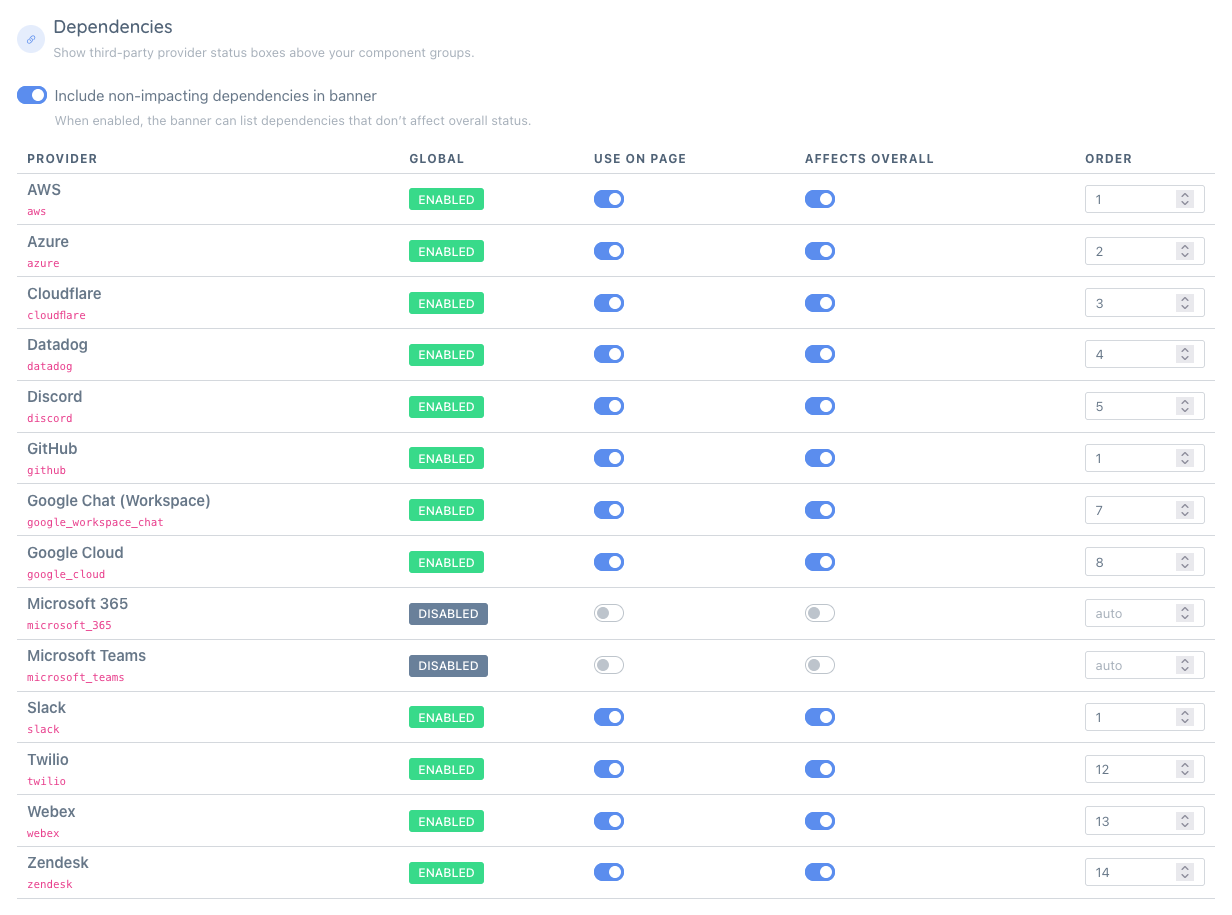
- Status Pages → Settings → Dependencies
For each provider you can:
- Use on page: show/hide the provider status box
- Affects overall: if enabled, vendor state can influence the page’s overall state
- Order: controls the display order of provider boxes
There is also a page-level toggle:
- Include non-impacting dependencies in banner
When enabled, the banner can list dependencies even if they do not affect overall status.
It loooks like this in the settings UI:
And on the public status page:
For general status page configuration, see:
Public Status Page Behavior
Status Boxes
When enabled, each provider renders as a box showing:
- Provider logo (if configured)
- Provider name
- Live status label (e.g. “Operational”, “Degraded”, “Outage”)
If the provider has a public status page link, the box opens it in a new tab.
Banner + Overall Status
- If any dependencies are configured for banner display, the banner will appear in one of two modes:
- depends_on: informational (“this service depends on…”) if none are currently failing
- affected_by: warning (“this service is affected by…”) if any provider reports issues
- If a provider is marked Affects overall, its status can raise the overall severity (e.g. operational → degraded/outage).
Tip: you can apply a similar idea to your own monitors using Monitor impact (full / low / none) so informational checks don’t dominate your overall status: Monitor Impact on Overall Status.
Best Practices
- Only include dependencies that are truly meaningful to your customers.
- Use Affects overall sparingly (only for critical vendors).
- Add a logo for faster scanning.
Troubleshooting
I enabled providers but nothing shows on my status page
- Confirm you enabled at least one provider under Use on page.
- Check that your status page is not in a special mode (e.g. incident-only view).
- If your plan doesn’t include dependencies, the settings UI will show an upgrade prompt.
A provider is showing “Unknown”
- Some providers may return degraded/unknown during upstream outages or when their status endpoint is unavailable.
- “Unknown” will not affect your overall status unless you enabled Affects overall.