
Clearing Monitor History
Last updated: 2026-04-08
Sometimes you need to wipe a monitor’s past data and start fresh — without deleting the monitor or reconfiguring it from scratch. Clear history does exactly that.
When to Use It
During setup or testing — You ran several test checks while dialling in your configuration (URL, expected response, check interval). Now that the monitor is set up correctly, the old test results skew your uptime percentage and response time charts. Clear the history to start with a clean baseline.
After resolving a systemic issue — A deployment or infrastructure change caused prolonged downtime. The monitor is now healthy, but 30 days of red history no longer reflects reality. Clearing lets the monitor’s statistics represent current performance only.
After migrating a service — You moved a service to a new host or URL. The old response times and failure counts belong to the previous setup. A clean history makes comparisons meaningful.
Switching from test to production — You used a monitor to test a staging endpoint and are now pointing it at production. Past staging results have no value in production context.
What Gets Cleared
Clearing history performs a full reset of all stored check data for that monitor:
| Data | Cleared |
|---|---|
Raw check results (monitor_results) | Yes |
| Distributed / multi-region check results | Yes |
| Daily aggregations (90-day history bars) | Yes |
| Hourly aggregations (24h charts) | Yes |
| Uptime percentage | Reset to — (no data) |
| Response time charts | Reset to empty |
| Failure-tracking state (down since, first failure) | Reset |
| Monitor configuration (URL, interval, alerts) | Not changed |
| Active incidents | Not cleared |
The monitor itself is not deleted or paused. Checks continue running immediately after the history is cleared.
What Is Not Affected
- Monitor settings — URL, check interval, expected response, alert channels, regions. Nothing changes.
- Active incidents — Any open incidents on your status page are not closed automatically. If you have an active incident that was triggered by the old data, resolve it manually from your status page.
- Other monitors on the same status page — Only the selected monitor’s data is removed.
How to Clear History
- Go to Monitors in the left menu.
- Find the monitor you want to reset.
- Click the ⋯ (more actions) button on the monitor row.
- Select Clear history.
- Confirm in the dialog.
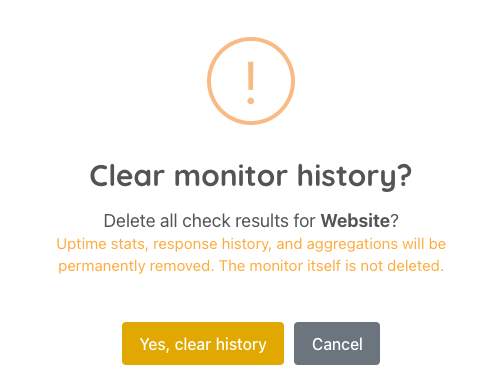
The operation runs immediately. Your status page and monitor dashboard will reflect the clean state on the next page load.
After Clearing
- The monitor’s uptime percentage shows — until enough new checks accumulate.
- The response time charts are empty until the first checks come in.
- The Recent Checks list in the expanded monitor row starts populating from the next scheduled check.
- Status page history bars for this monitor show as empty/grey until new daily data is aggregated.
FAQ
Can I undo a history clear?
No. The operation is permanent. There is no way to restore cleared check data.
Will my alerts still fire after clearing?
Yes. Alert configuration is not touched. If the monitor detects a failure after clearing, notifications fire as normal.
Does clearing history affect my uptime SLA report?
Yes — the SLA report is based on check history. After clearing, the report will show a shorter or empty dataset until new checks accumulate.
Does it affect the public status page?
Yes. The 90-day history bars and uptime percentage shown to visitors will reset. For a brief period the history will appear empty, then fill in as new checks are recorded.
I cleared history but the status page still shows old data.
All relevant caches are invalidated immediately when you clear history. If you still see old data, do a hard refresh (Ctrl+Shift+R / Cmd+Shift+R) to bypass your browser cache.