
Scheduling Planned Maintenance
Last updated: 2026-08-12
Planned maintenance is different from incidents - it’s scheduled work you know about in advance. Announcing it beforehand helps set user expectations and reduce support requests.

Maintenance vs Incidents
| Maintenance | Incidents |
|---|---|
| Planned in advance | Unexpected issues |
| Scheduled start/end time | Duration unknown at start |
| Proactive communication | Reactive communication |
| Users can prepare | Users are surprised |
When to Schedule Maintenance
Common reasons for scheduled maintenance:
- Database upgrades
- Security updates
- Server migrations
- Infrastructure changes
- Performance optimizations
- Certificate renewals
If users might notice any impact, it’s worth scheduling maintenance.
Creating a Maintenance Window
- Go to Maintenances in the left menu
- Click Schedule Maintenance
- Fill in the details:
| Field | Description |
|---|---|
| Title | What the maintenance is for |
| Description | Details about expected impact |
| Start Time | When maintenance begins |
| End Time | When you expect to finish |
| Affected Components | Which services will be impacted |
- Click Schedule
Setting the Time Window
Be realistic about your maintenance window:
- Add buffer time - Things often take longer than expected
- Consider time zones - Choose times with least user impact
- Extend if needed - Add time before the window expires if work takes longer
The maintenance will automatically start and end at the scheduled times on your status page.
For affected components, monitor checks are paused during the active maintenance window. When the window ends, only monitors paused by that maintenance window are resumed automatically; monitors disabled manually (or for other reasons) remain disabled.
Extending a Maintenance Window
If maintenance work is taking longer than expected, extend the window from the Maintenances list instead of editing the entire event.
- Go to Maintenances in the left menu
- Find the maintenance event
- Click Extend
- Choose a preset duration:
| Preset | Adds |
|---|---|
| 15 minutes | 15 minutes |
| 30 minutes | 30 minutes |
| 45 minutes | 45 minutes |
| 1-6 hours | The selected number of hours |
| Custom | Any 15-minute increment from 15 minutes to 24 hours |
- Enter the reason for the extension
- Confirm the extension
StatusPage.me updates the maintenance end time and posts a maintenance update note that says the window was extended, shows the old and new end times, and includes the reason you entered.
If the original maintenance window has already ended, the extension is calculated from the current time. For example, extending an already-expired window by 30 minutes makes it active until 30 minutes from now, not 30 minutes after the stale end time.
Use the extension note for concise operational context, such as:
Database migration is still validating replicas.Provider reboot is still in progress.Rollback checks need another 30 minutes.
Affected Components
Select the components that will be impacted:
- Their status automatically changes to “Under Maintenance”
- They return to normal status when maintenance ends
- Users can see exactly what’s affected
Affected components are highlighted on your status page, so users know what to expect during the maintenance window:
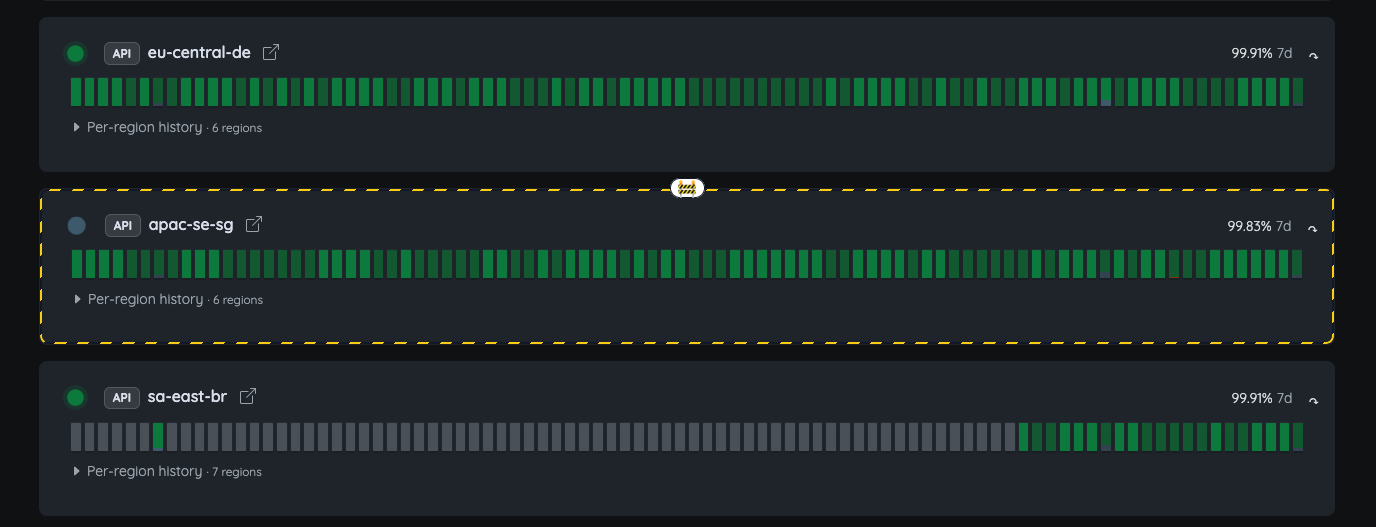
In this example, the apac-se-sg component is affected by the maintenance. You’ll notice that the component’s status is automatically updated to “Under Maintenance” (gray pulsating circle) during the scheduled window, and it will return to normal status once the maintenance is complete. This helps users understand which services are impacted and when they can expect them to be back to normal.
If an affected component belongs to a component group, the group’s own status badge updates to “Under Maintenance” too - not just the individual component - so visitors get an accurate summary whether they’re scanning the group header or expanding it to see details. If something else in that same group has a genuine problem (an active incident, or a real degraded/down monitor), that takes priority in the group badge over the maintenance label, since a real issue is more important for visitors to notice.
Notifying Subscribers
When you create a scheduled maintenance:
- Subscribers can be automatically notified
- They receive advance notice before maintenance begins
- Updates are sent when maintenance starts and ends
Configure notification settings in your status page settings or subscriber settings.
If you use per-component subscriber notifications, note that scheduled and completed maintenance emails are still sent page-wide. Component selection on the maintenance record changes what visitors see on the page, but it does not currently narrow maintenance email delivery.
Subscriber updates follow the maintenance timeline: scheduled notice (if enabled), in-progress visibility at start, and completion visibility at end (or when completed manually earlier).
During Maintenance
While maintenance is in progress:
- Your status page shows the maintenance banner
- Affected components show maintenance status
- Users see the expected end time
If you need to post updates during maintenance, you can add them to the maintenance record.
If the expected end time changes, use Extend so the status page timeline and maintenance update history stay aligned.
On the public status page, visitors can inspect an active maintenance progress bar to see the scheduled window, duration, and the time at any point in that window using their selected timezone.
Completing Maintenance
Maintenance ends automatically at the scheduled end time. If you finish early:
- Open the maintenance record
- Click Complete Maintenance or mark it as finished
- Components return to normal status
If you need more time, you can extend the maintenance window.
Completing early updates runtime maintenance state immediately and affected monitor checks can resume right away (subject to the safety rule above: only maintenance-paused monitors are auto-resumed).
Maintenance Best Practices
| Do | Don’t |
|---|---|
| Schedule during low-traffic hours | Perform maintenance during peak times |
| Give at least 24 hours notice for major work | Surprise users with last-minute maintenance |
| Be clear about expected impact | Use vague descriptions |
| Update if plans change | Leave outdated information |
| Complete on time or extend if needed | Leave maintenance running after you’re done |
Viewing Maintenance History
To see past maintenance:
- Go to Maintenances in the left menu
- View completed, ongoing, and scheduled maintenance
- Click any entry to see details
Team Maintenances
If a status page is linked to a team, its maintenances are also visible under that team’s workspace (Teams → select a team → Operations → Maintenances) — this includes maintenances for pages you personally own, as long as they’re also linked to the team, not just pages owned by other members.
Scheduling maintenance in a team context is gated by the team owner’s plan, not the acting member’s own plan — so a team admin/editor on a lower personal plan can still schedule maintenance for a team-linked page if the team owner’s plan allows it.