
Temporary Support Access (TSA)
Temporary Support Access (TSA) is the controlled way for our team to work inside your account when troubleshooting an issue for you.
Instead of sharing passwords or granting permanent access, support requests a short-lived session that is logged, monitored, and visible to you.
There are two ways TSA can begin:
- Support-initiated TSA: our team sends you an approval request before entering your account.
- User-initiated TSA request: you open a request yourself from Support Access Request, describe the issue, and pre-authorize support to access your account for that case.
Two TSA Flows
1. Support-initiated TSA
- A support team member sends a Temporary Support Access request from the admin side.
- You review the request and decide whether to approve it.
- If you approve it, support starts the session.
- When the session begins, you are notified immediately.
TSA is intended for normal support and debugging work where user approval should happen first.
2. User-initiated support access request
If you already know you want our team to investigate directly, you can start the process yourself at Support Access Request.
In that flow you:
- Open the request form in your dashboard.
- Describe the issue.
- Explain what you have already tried.
- Describe the expected outcome.
- Optionally attach a screenshot, video, or PDF.
- Submit the request, which pre-authorizes support to access your account for that issue.
After submission:
- admins are notified right away
- your request appears in your support request history
- the request moves through statuses such as Pending, In progress, and Resolved
This path is intended for cases where you want faster direct troubleshooting without waiting for a separate approval prompt later.
How Approval and Authorization Work
The approval model depends on which TSA flow is being used.
Support-initiated flow
The request can reach you in two ways:
- If you are online in the dashboard: you can receive the approval prompt there.
- If you are offline: support can fall back to email so you can approve or decline later.
The exact path depends on whether you are actively using your account at the time the request is sent.
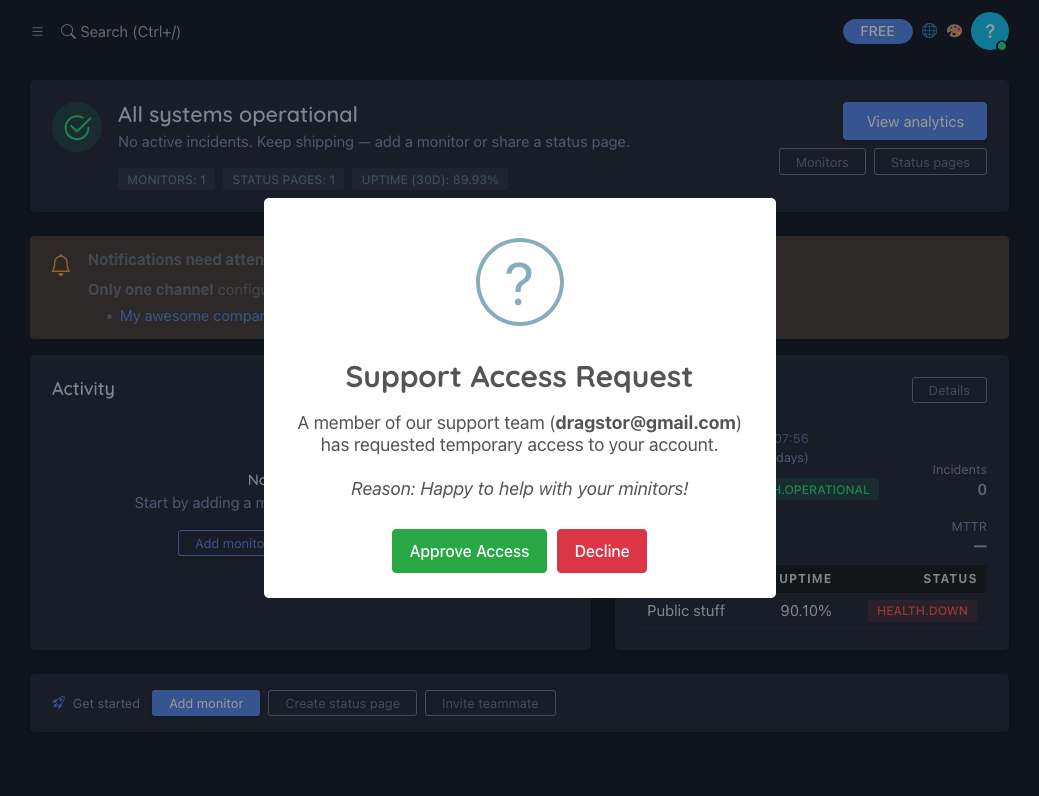
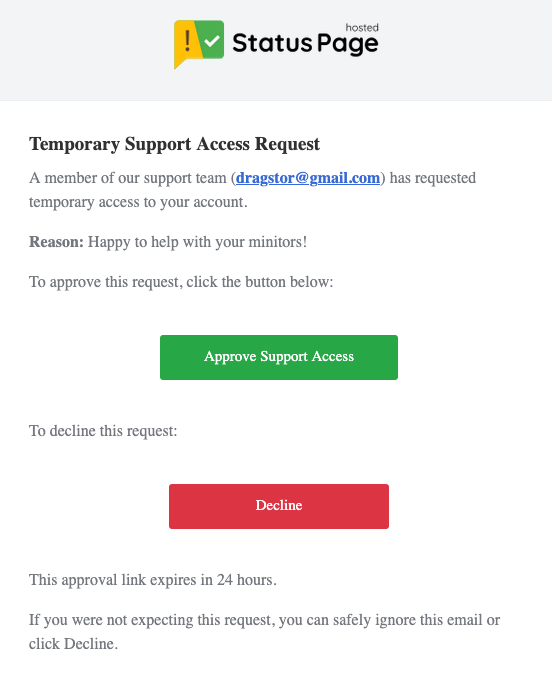
User-initiated flow
When you submit a request from Support Access Request, you are the one initiating the access request. That means there is no separate approval email or approval prompt first for that specific case.
Instead, your submission itself acts as the authorization for support to investigate the issue you described.
What Happens When a TSA Session Starts
Once support actually starts the session, you are notified in two places:
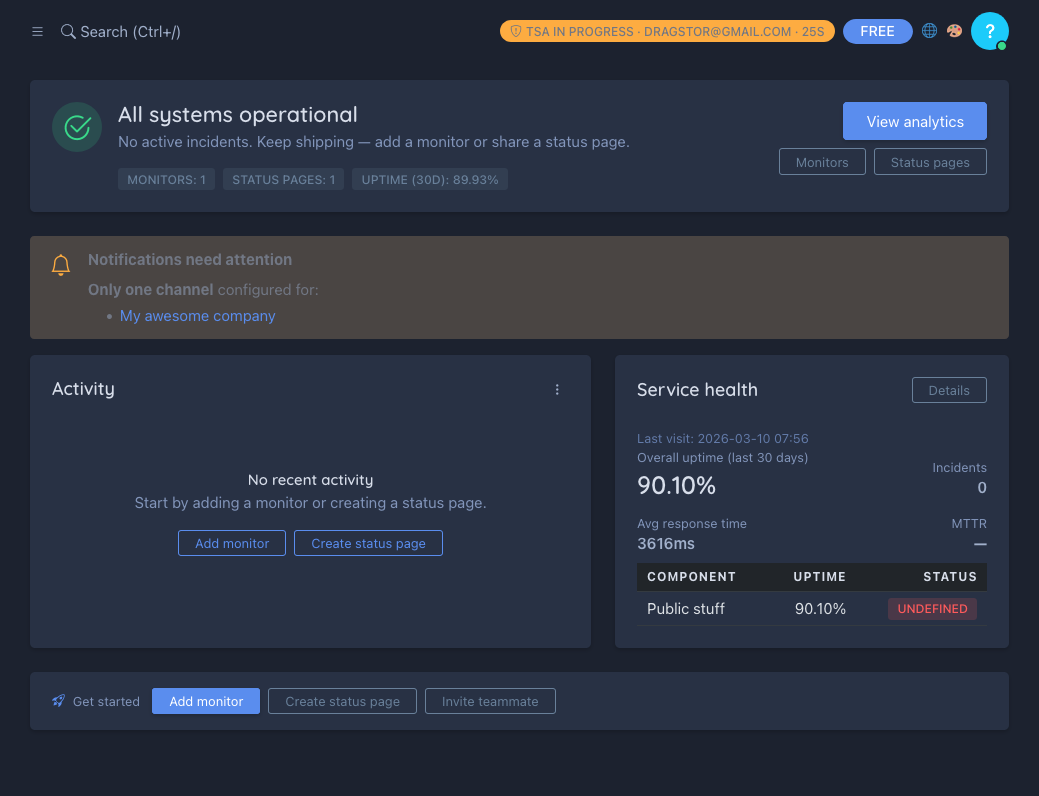
- A real-time warning inside your dashboard
- A security email to your account email address
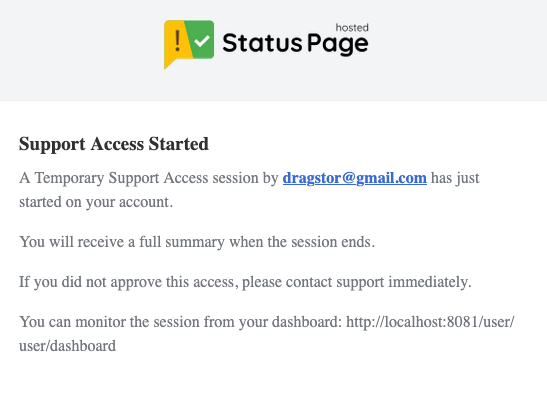
While a session is active, the dashboard navbar also shows that Temporary Support Access is currently in progress.
This makes the session visible even if you approved it earlier and later returned to another page.
What Gets Logged
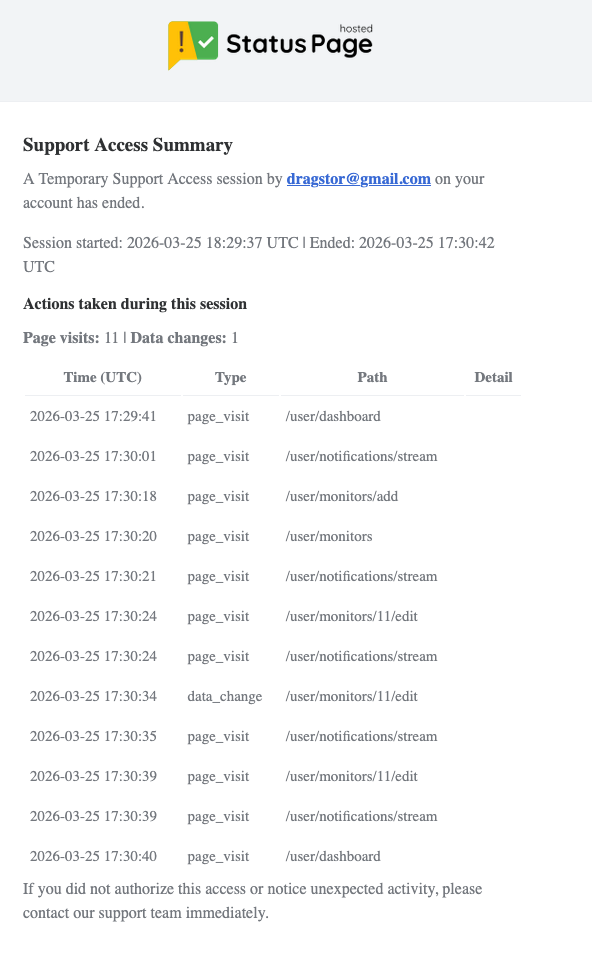
TSA sessions are logged and monitored.
This includes the fact that the session started and the support identity attached to it. The goal is to make support access auditable instead of informal.
For user-initiated requests, the support request itself is also tracked separately so you can review your own request history and its current status.
User-Initiated Support Requests
If you use the self-serve request flow at Support Access Request, here is what to expect:
- the feature is available on paid plans
- you can include issue details, what you already tried, and the expected outcome
- you can optionally attach supporting files such as screenshots, short videos, or a PDF
- support is notified immediately after submission
- your previous requests are visible in Support Request History
This is useful when you want to give support the context up front and avoid going back and forth before someone begins investigating.
When the request is resolved, the history view shows its final status and any resolution summary left by support.
Emergency Access
In rare cases, support may need to use a clearly labeled emergency access path instead of waiting for normal approval.
Emergency access is meant for exceptional situations where waiting for the full consent flow would prevent urgent recovery work. It can start without your prior approval, but it is always recorded in the security audit log, and you are notified that it happened: you receive a security email and an in-app notification titled “Emergency administrative access was used on your StatusPage.me account”. The notification is sent after access begins, not before, and it states that the access did not require your prior approval. Unlike a normal Temporary Support Access session, it does not send a separate session summary.
If You Did Not Expect the Session
If you receive a TSA start alert that you did not expect:
- Contact support immediately through your normal support channel.
- Review your Account Security & Password Protection settings.
- Change your password if you believe your account may be at risk.