
Simple Status Pages
Simple status pages are built for teams that want to communicate service status clearly without setting up uptime monitors first.
Instead of showing measured uptime, a simple status page shows reported status based on incidents, maintenance windows, and manual overrides.
When to Use a Simple Status Page
Simple status pages are useful when:
- You want a public status page quickly
- You prefer manual incident communication over automated monitoring
- Your team already knows when issues happen and wants to publish them directly
- You want Atlassian-style historical status ticks without monitor-based uptime percentages
If you want automatic monitor checks, uptime percentages, and response-time charts, use a regular monitor-backed status page instead.
How Simple Status Pages Work
When you create a simple status page, you choose:
- A status page name
- A slug
- A first component name
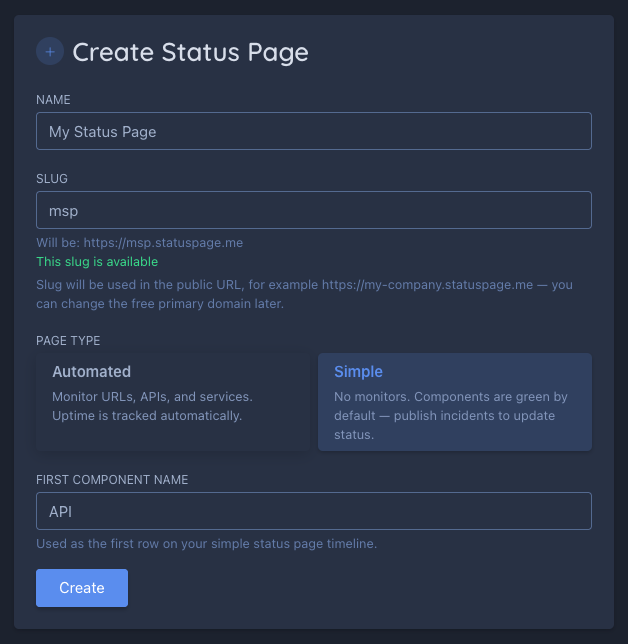
That first component is created automatically during setup so the page is immediately usable - see the demo here: https://simplestatuspagedemo.statuspage.me/.
From there, the component stays operational by default until something changes its reported state.
What Changes the Status
💡 Simple status pages do not rely on monitor checks.
Status is derived from:
- Incidents linked to the component
- Maintenance windows affecting the component
- Manual component overrides
If none of those apply, the component is shown as operational.
Understanding the 90-Day Ticks
The 90-day strip on a simple component is a reported status history, not an uptime chart.
- Green means no reported issue for that day
- Red, orange, yellow, or maintenance colors mean a reported incident, override, or maintenance window affected that day
- Hovering a tick shows incident/status context instead of uptime wording
This keeps the timeline focused on communication, not availability math.
Creating Incidents on a Simple Page
To update a component on a simple page:
- Create an incident
- Assign it to the affected component
- Publish updates as the situation changes
That incident will:
- Change the current component status
- Affect the page banner when active
- Appear in Incident History
- Update the 90-day reported status strip
See Creating Incidents for the full workflow.
Components on Simple Pages
Simple components behave differently from monitor-backed components.
They:
- Do show current status
- Do show reported status over the past 90 days
- Do support grouping
- Do not show uptime widgets
- Do not show response-time charts
For general component management, see Managing Components and Component Groups.
Simple Status Page Dashboard
If you have at least one simple status page, you’ll see a Simple Dashboard option in your account. The dashboard is a focused control panel for managing component statuses and viewing active incidents without leaving a single screen.
Accessing the Dashboard
- From the Status Pages list, click Dashboard next to a simple status page.
- From the main Dashboard, click the quick-access card shown when you have a simple page.
Setting It as Your Default Landing
Inside the dashboard header, use the Set as default button to make this dashboard your landing page after login. Click Default dashboard at any time to remove that preference. The toggle is persistent and can be changed whenever you like.
Updating Component Status
Each component row shows a status dropdown on the right. Click it to change the status directly — no forms, no modals:
- Operational and — Clear override — both fully reset the component to its default state.
- Any other status (Degraded Performance, Partial Outage, Major Outage, Under Maintenance) activates an override immediately.
Adding a Note
When a non-operational status is active, a "+ Add a note / incident update" link appears below the dropdown. Click it to open a text dialog where you can write a public message (e.g. “Investigating elevated error rates on the API”).
- If a note already exists, the link shows the current note text — click to edit it.
- The note is shown publicly next to the component on your status page.
- Notes are entirely optional; leaving one blank skips subscriber notifications.
Notes and Auto-Created Incidents
When you save a note, the platform automatically manages a single incident for the component:
- First note — creates an incident titled
"{Component} — {Status}"(e.g. “API — Major Outage”) with the note as the initial message, state set to Investigating, and subscribers notified. - Subsequent notes while the incident is still open — the note is appended as a new timeline entry on the same incident. The incident title updates to reflect the latest status. No new incident is created.
- Returning to Operational / clearing the override — the open incident is automatically resolved. No manual cleanup needed.
If you change status without adding a note, no incident is created and no subscribers are notified — the override is applied silently.
Team Access
Team members invited with the Admin or Editor role on a linked team can access the simple dashboard for shared pages.
- Owners and team Admins always see the full simple dashboard.
- Team Editors can manage the dashboard too, but if component group permissions are configured they only see and manage components and active incidents inside their assigned groups.
- Ungrouped components are hidden from editors who have explicit group assignments on that page.
- Viewers can see the status page list entry but cannot open the dashboard.
If an editor needs access to additional components, update their component group permissions.
Maintenance and Overrides
Simple pages also support maintenance windows and manual overrides.
- Maintenance updates the reported status for affected days
- Overrides let you manually set a component status when needed — use the Simple Dashboard for the fastest workflow
- Incidents still take precedence when they overlap the same period
This gives you a complete manual communication workflow without monitors.
Best Practices
| Tip | Why it helps |
|---|---|
| Use clear component names | Visitors should immediately understand what is affected |
| Keep incident messages concrete | Report what users see, not just internal symptoms |
| Assign incidents to components | This makes the timeline meaningful |
| Use maintenance windows for planned work | It keeps planned changes separate from service incidents |
| Avoid uptime language in comms | Simple pages are about reported status, not measured availability |